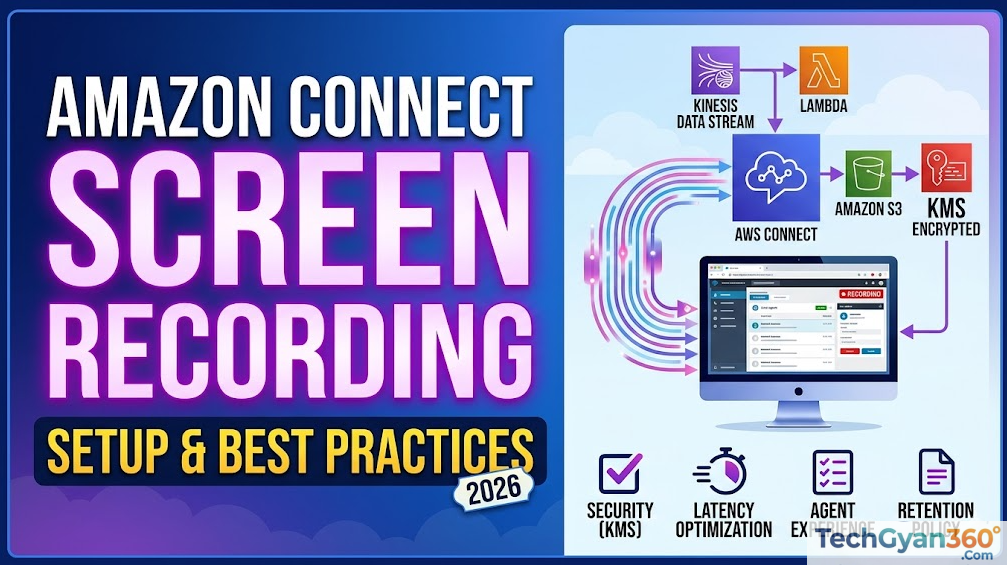

Amazon Connect Screen Recording is a Contact Lens feature that captures the agent’s desktop during voice, chat, and task contacts. It records up to three monitors in MP4 format, stores files in Amazon S3 with KMS encryption, and surfaces synchronized playback alongside call audio and transcripts inside the Amazon Connect Contact Lens console.
Introduction: Why Your Contact Center Needs Screen Recording
Call recordings tell you what your agents said. Screen recordings tell you what they actually did.
In a modern contact center, that distinction matters enormously. Two agents might follow identical scripts word for word, yet one resolves a refund in ninety seconds while the other spends five minutes navigating the same ticketing system. Audio alone will never explain that gap. You need to see the desktop.
Amazon Connect Screen Recording — delivered as a Contact Lens capability — closes that blind spot. It captures the agent’s full desktop during every eligible contact, stores the resulting MP4 file in your own Amazon S3 bucket, and surfaces it alongside the voice recording and transcript in a single synchronized review interface. Supervisors, QA analysts, and compliance officers see the complete picture without jumping between tools.
Enterprises choose Amazon Connect Screen Recording for four core reasons:
Compliance assurance. Regulated industries — banking, healthcare, insurance, government — need an auditable record of what agents accessed and displayed during sensitive interactions. Screen recording provides exactly that, with KMS encryption, granular access controls, and suspend/resume APIs that prevent sensitive data from being captured when required.
Quality assurance accuracy. Traditional QA programs score on what agents say. Screen recording lets evaluators score on what agents do — whether the right knowledge article was opened, whether the approved verification workflow was followed, whether the correct system was used.
Agent coaching depth. Instead of vague feedback like “reduce handle time,” supervisors can point to the specific workflow step where time was lost. That specificity accelerates agent improvement dramatically.
Operational monitoring. With EventBridge integration announced in January 2026, operations teams now receive near-real-time status signals for every recording session — initiated, completed, published, failed — enabling proactive intervention rather than reactive complaint handling.
This guide covers everything an enterprise AWS team needs: architecture, prerequisites, step-by-step setup, security and compliance controls, troubleshooting, competitor comparisons, and a 30-question FAQ drawn directly from AWS official documentation.
What Is Amazon Connect Screen Recording?
Amazon Connect Screen Recording is a native capability within Amazon Connect’s Contact Lens platform that records an agent’s desktop during a contact — whether that contact is a voice call, chat session, or task. Unlike third-party screen capture software bolted on top of a contact center platform, this feature is architected directly into the Amazon Connect service layer.
The recording begins when an agent accepts a contact for which screen recording has been enabled in the contact flow. The Amazon Connect Client Application, installed on the agent’s endpoint, captures all open applications on up to three monitors simultaneously. It encodes the video at 5 frames per second using the OpenH264 codec and transmits the data through Amazon Connect infrastructure to your designated Amazon S3 bucket. The finished file is an MP4, linked to the contact record, and immediately accessible through Contact Lens for synchronized review.
The feature is distinct from call recording, which captures audio only. Screen recording captures the visual desktop context. Critically, both can run simultaneously — or independently. You can enable screen recording without call recording for a voice contact if your compliance or operational requirements demand it.
Recording operates at the contact flow level, not at the instance level globally, which gives administrators precise control over which queues, contact types, or even which percentage of contacts are captured. This queue-based granularity is one of the most operationally important design decisions in the feature.
Why Screen Recording Matters in Modern Contact Centers
The QA Blind Spot Problem
Traditional contact center quality assurance programs rely on call recordings and chat transcripts. These tools reveal the spoken or typed interaction well. What they cannot reveal is the operational context behind that interaction: which CRM screen the agent was viewing, how many clicks it took to locate the customer record, whether the agent opened the correct compliance checklist, or whether a sensitive payment screen was displayed at an inappropriate moment.
This gap is not theoretical. It surfaces consistently in high-complexity contact types — identity verification, payment processing, account resets, clinical data access in healthcare settings, or benefits eligibility reviews in government contact centers. In these scenarios, the visual workflow is as consequential as the spoken conversation.
The Agent Performance Paradox
Enterprise contact centers routinely observe what might be called the performance paradox: two agents with identical training, identical scripts, and identical call scores produce wildly different average handle times on structurally identical contacts. Supervisors know the difference exists, but without desktop visibility, they cannot diagnose the root cause.
Screen recording converts this guesswork into evidence. The supervisor watches the recording and discovers that Agent A navigates directly to the knowledge article for the relevant product version, while Agent B searches from the homepage every time. That single behavioral difference, invisible to audio monitoring, explains a two-minute handle time delta per contact. Multiply that by 200 contacts per day and the operational impact becomes substantial.
The Compliance Imperative
For regulated industries, screen recording is not optional enhancement — it is audit infrastructure. Payment card processing environments must demonstrate that agents are not exposing full card numbers. Healthcare contact centers operating under HIPAA must show that access to patient records is appropriately scoped and follows approved workflows. Financial services firms must prove that agents provided disclosures and followed required processes.
Call recording demonstrates that the disclosure was spoken. Screen recording demonstrates that the required disclosure screen was actually open when the agent spoke those words. Regulators and internal audit teams increasingly expect both.
Key Features of Amazon Connect Screen Recording
Multi-Monitor Desktop Capture
The Amazon Connect Client Service records all open applications on the agent’s monitor, supporting up to three simultaneous monitors. This is especially relevant for enterprise contact centers where agents typically work across a CRM on one screen, the agent workspace on another, and a knowledge base or compliance tool on a third.
Contact Channel Coverage
Screen recording is supported across all three primary Amazon Connect contact channels: voice, chat, and task contacts. This multi-channel coverage means QA programs do not need separate tooling for different interaction types. The same recording workflow, the same storage destination, and the same Contact Lens review interface apply across all supported channels.
MP4 Format and Storage
Recordings are delivered to your Amazon S3 bucket in MP4 format. AWS documentation confirms an average file size of approximately 1.5 MB per minute of recording, though this varies depending on video encoding conditions such as screen complexity and motion. The recording is linked to the contact record through the RecordingsInfo section, with the Location field providing the direct S3 path.
KMS Encryption
All screen recording artifacts are encrypted at rest using the AWS KMS key you specify during instance configuration. When encryption is enabled, Amazon Connect uses the KMS key to encrypt intermediate recording data as the service processes it, not only the final stored file. The same KMS key must be used at both the bucket level and the instance data storage configuration — using different keys for each will cause failures.
Synchronized Playback in Contact Lens
Supervisors and QA analysts review screen recordings directly from the Contact details page in the Amazon Connect console. The playback interface shows the desktop recording synchronized with call audio and the Contact Lens transcript, providing a unified review experience. Controls include standard playback, speed adjustment, and a “Show screen recording” toggle on the contact details page.
Suspend and Resume API
For contacts that involve sensitive data — payment card entry, SSN collection, identity verification — the SuspendContactRecording and ResumeContactRecording APIs allow contact flows or custom applications to pause the screen capture during regulated portions of the interaction and resume after. This makes sensitive screen exclusion programmatic and auditable rather than dependent on agent judgment.
Access Control Through Security Profiles
Amazon Connect security profiles control who can view screen recordings and who can download them. Playback access and download access are configured as separate permissions, allowing organizations to give QA analysts view-only access while restricting download capability to compliance officers or administrators. This separation is an important governance control, particularly in regulated industries.
EventBridge Status Tracking (January 2026)
The most recent significant enhancement — announced January 12, 2026 — is near-real-time status tracking for screen recordings via Amazon EventBridge. By subscribing to the Screen Recording Status Changed event type on the EventBridge event bus, operations teams can monitor each recording’s lifecycle with four status signals: INITIATED, COMPLETED, PUBLISHED, and FAILED. PUBLISHED is the operational success signal — it confirms the MP4 has been delivered to S3 and is ready for review. FAILED events trigger investigation workflows. Each event includes the client application version, agent browser version, agent operating system, and start/end timestamps.
VDI and ChromeOS Support
Screen recording supports concurrent user sessions in Windows Virtual Desktop Infrastructure (VDI) environments, provided the Amazon Connect Client Application version 2.0.0 or later is installed. For ChromeOS, recording is delivered through the Amazon Connect Isolated Web App and a browser extension, both managed and automatically updated by Amazon Connect. ChromeOS deployment typically uses the Google Enterprise Admin Console for managed configuration.
Latest Feature Announcements
Real-Time Status Tracking via EventBridge (January 12, 2026)
Amazon Web Services announced screen recording status tracking on January 12, 2026, enabling operations teams to monitor recording lifecycle events in near real time through Amazon EventBridge and CloudWatch. This addressed a significant operational gap: previously, administrators had to wait for QA teams to report missing recordings. Now, FAILED events surface within minutes of contact completion, with actionable metadata including failure codes and descriptions, client version information, browser version, and operating system details.
Teams can subscribe to the Screen Recording Status Changed event type and route events to CloudWatch Logs, enabling custom operational dashboards, alerting on failure rate thresholds, and automated investigation workflows via AWS Lambda.
GovCloud Support (v2.0.3)
Screen recording extended to AWS GovCloud (US-West) with the requirement that agents run client version 2.0.3 or later. This brings the compliance-focused screen recording capability to federal agencies and government contractors operating in the GovCloud environment.
VDI Multi-Session Support (v2.0.0)
Client Application version 2.0.0 introduced support for concurrent user sessions in VDI environments, a critical requirement for BPO operations and enterprise contact centers that use shared desktop infrastructure.
Benefits of Amazon Connect Screen Recording
For Compliance Teams
- Creates an auditable, time-stamped record of agent desktop activity during regulated interactions
- Suspend/resume APIs ensure sensitive data (PAN, SSN, PHI) is not inadvertently captured
- PCI DSS compliance verified for the Amazon Connect platform, including screen recording
- Access controls separate viewing from downloading, supporting least-privilege audit access
- S3 lifecycle policies enable retention management aligned to regulatory requirements
For Quality Assurance Programs
- Evaluates workflow compliance, not just script adherence
- Identifies training gaps at the specific behavioral level (“missed this article” vs. “high handle time”)
- Enables sampling-based QA programs using the Distribute by Percentage flow block
- Synchronizes with Contact Lens transcripts for holistic review
- Supports queue-based recording policies matching QA sampling priorities by contact type
For Agent Coaching
- Supervisors provide specific, evidence-based feedback instead of inference
- New agents learn approved workflows by watching recorded examples of correct behavior
- Handle time reduction is tied to specific navigation improvements rather than generic coaching
- Agents cannot dispute workflow coaching when the recording shows the exact sequence
For Operations Teams
- Near-real-time failure detection via EventBridge eliminates reactive investigation
- Client version drift monitoring ensures endpoints remain on supported software
- CPU and resource utilization trends on agent endpoints can be tracked through client metadata
- Recording success rate becomes a measurable operational KPI
For Fraud Detection and Risk Management
- Provides evidence of agent-side actions in disputed transactions
- Documents whether approved verification procedures were followed before account changes
- Supports internal investigation by making agent desktop behavior auditable after the fact
How Amazon Connect Screen Recording Works
Architecture Overview
The screen recording architecture involves six primary components working in sequence:
Amazon Connect SDK / Contact Flow — The contact flow’s Set recording and analytics behavior block signals that screen recording should be active for a given contact. This signal is passed to the agent workspace at contact acceptance.
Amazon Connect Client Application (Agent Endpoint) — A locally installed application on the agent’s Windows machine or ChromeOS device. It runs as a background service (Amazon.Connect.Client.Service) and, when a recordable contact is accepted, spawns a recording subprocess (Amazon.Connect.Client.RecordingSession). This subprocess captures the desktop at 5 frames per second using the OpenH264 codec, up to three monitors simultaneously.
CCP / Agent Workspace — The Contact Control Panel communicates with the Client Application via a local WebSocket connection. This local channel passes the recording session context, including suspend/resume signals from the SuspendContactRecording and ResumeContactRecording APIs.
Amazon Connect Service Layer — Manages the recording session lifecycle, associates the recording with the contact ID, and orchestrates the publishing process once the contact ends.
Amazon S3 — The final destination for the MP4 file. The recording is delivered to your designated S3 bucket, encrypted with your KMS key, and linked to the contact record in the RecordingsInfo.Location field.
Amazon EventBridge — Publishes Screen Recording Status Changed events at each lifecycle transition (INITIATED, COMPLETED, PUBLISHED, FAILED), allowing downstream monitoring via CloudWatch, Lambda, SNS, or custom event consumers.
Data Flow
- Agent accepts an eligible contact in the CCP
- Client Application spawns
Amazon.Connect.Client.RecordingSession - Desktop capture begins at 5 fps; data transmits through Amazon Connect to the service layer
- For sensitive workflow sections,
SuspendContactRecordingAPI call pauses capture;ResumeContactRecordingAPI call resumes it - Contact ends; Client Application finalizes the video stream
- Amazon Connect encodes the final MP4, encrypts it with KMS, and publishes it to S3
- EventBridge emits a PUBLISHED event with S3 location metadata
- The contact record’s
RecordingsInfois updated with the S3Locationfield - Supervisors access the recording from the Contact details page in the Amazon Connect console, synchronized with audio and transcript
Browser Closure Behavior
If the agent closes the browser at the very start of the contact before any screen capture data can be uploaded, the final recording may not be published. If the browser is closed immediately after a contact ends but before final data upload completes, Amazon Connect will publish the recording when the agent next logs into the CCP. This behavior means that brief browser closures do not necessarily result in lost recordings — they may be delayed.
Prerequisites Before Enabling Screen Recording
Before enabling screen recording in your Amazon Connect instance, confirm the following are in place:
AWS Account and Instance Prerequisites
| Prerequisite | Details |
|---|---|
| Amazon Connect instance | Must be an active instance with Contact Lens enabled |
| Instance creation date | If created before October 2018, migrate to service-linked roles first |
| AWS region | All commercial AWS regions where Amazon Connect is available; GovCloud requires client v2.0.3+ |
| Contact Lens | Screen recording is a Contact Lens capability; ensure it is available for your instance |
IAM and Security Prerequisites
| Prerequisite | Details |
|---|---|
| Admin IAM role | Requires permissions to modify Amazon Connect instance settings |
| KMS key | Create or identify a KMS key for encryption; the same key must be used at bucket level and instance configuration level |
| S3 bucket permissions | Amazon Connect service-linked role needs PutObject access to the target bucket |
| Security profile configuration | Plan which security profiles receive screen recording view/download permissions |
Endpoint Prerequisites
| Prerequisite | Details |
|---|---|
| Operating system | Windows (MSI installer) or ChromeOS (Isolated Web App + Extension) |
| VDI support | Client Application version 2.0.0 or later for concurrent sessions |
| GovCloud | Client Application version 2.0.3 or later |
| Bandwidth | 500 kbps per concurrent contact with screen recording enabled |
| CPU and memory | Sufficient resources per system requirements documentation; screen recording is CPU-intensive |
| Allowed Connect domains | Client installation must whitelist your instance domain (format: your-instance.my.connect.aws; do not include https:// prefix) |
Network Prerequisites
The Amazon Connect Client Application communicates with the CCP through a local WebSocket. Ensure that:
- Your network allows outbound connectivity to your Amazon Connect instance domain
- Firewall rules do not block the local WebSocket communication on agent endpoints
- Screen recording traffic (500 kbps per concurrent contact) is accounted for in bandwidth planning
How to Enable Amazon Connect Screen Recording: Step-by-Step
Step 1: Enable Screen Recording at the Instance Level
- Open the Amazon Connect console at
https://console.aws.amazon.com/connect/ - Select your instance alias from the instance list
- In the left navigation pane, choose Data storage
- Scroll down to the Screen recordings section and choose Edit
- Select Enable screen recording
- Choose Create a new S3 bucket (recommended) and enter a bucket name, or select an existing bucket from the Name list
- To encrypt recording artifacts, select Enable encryption and choose your KMS key
Important: When encryption is enabled, Amazon Connect uses the KMS key to encrypt intermediate recording data during processing, not only the final stored file. The KMS key you select here must match the key configured at the S3 bucket level. Using different keys will cause recording failures.
- Choose Save
Important for legacy instances: If your Connect instance was created before October 2018 and you have not migrated to service-linked roles, complete the service-linked role migration at
https://docs.aws.amazon.com/connect/latest/adminguide/connect-slr.html#migrate-slrbefore proceeding.
Step 2: Download and Install the Amazon Connect Client Application
For Windows:
Deploy the MSI installer through your enterprise software distribution tool:
msiexec /i Amazon.Connect.Client.Service.Setup.msi ALLOWED_CONNECT_DOMAINS="your-instance.my.connect.aws"Critical MSI installation notes:
- Do NOT include
https://orhttp://protocol prefixes inALLOWED_CONNECT_DOMAINS— this is explicitly documented by AWS and will cause installation failures - For multiple domains (dev and prod), separate with commas:
dev-instance.my.connect.aws,prod-instance.my.connect.aws - Maximum 500 domain entries; each domain entry limited to 256 characters; total input limited to 128,000 characters
- Allowed characters: A-Z, a-z, 0-9, hyphen (-), period (.)
For ChromeOS:
- Open the Google Enterprise Admin Console
- Navigate to Devices > Chrome > Apps & extensions
- Add the Amazon Connect Isolated Web App using the Update manifest URL from AWS documentation
- Configure the managed configuration JSON with
allowListedDomaincontaining your Connect instance URLs - Set installation policy to Force install
- Apply to the relevant organizational unit
ChromeOS apps and extensions are automatically updated by Amazon Connect as new versions are published.
Step 3: Validate Client Application Installation
After installation, validate the service is running:
- Open Windows Task Manager
- Go to the Users tab
- Confirm
Amazon.Connect.Client.Serviceappears in the process list - Have an agent accept a test contact in a screen recording-enabled queue
- Confirm
Amazon.Connect.Client.RecordingSessionappears in Task Manager during the active contact - Check local application logs for successful service health and session initiation messages
Step 4: Configure the Set Recording and Analytics Behavior Block
In the Amazon Connect flow designer:
- Open the contact flow for the queue you want to enable screen recording on
- Add the Set recording and analytics behavior block immediately after the entry point of the flow (typically after the Set working queue block)
- Open the block’s properties panel
- Scroll to the Screen section
- Under Agent screen recording, select On
- Save and publish the contact flow
Tip: Add this block near the entry point of every flow where you want screen recording enabled. If you add it later in the flow, contacts that reach agent connection before the block executes may not be recorded.
Step 5: (Optional) Enable Contact Searchability
To allow supervisors to search for contacts with screen recordings:
- Add a Set contact attributes block immediately before the
Set recording and analytics behaviorblock - Create a user-defined contact attribute — for example,
screen_recordingwith valuetrue - Save and publish the updated flow
- Supervisors can then filter Contact Search results on this custom attribute
Step 6: (Optional) Configure Percentage-Based Sampling
To record only a subset of eligible contacts:
- Add a Distribute by percentage block before the
Set recording and analytics behaviorblock - Configure the desired percentage split — for example, route 25% to the branch with screen recording enabled and 75% to the branch without
- This is useful for QA sampling programs or pilot rollouts before expanding to full coverage
Step 7: (Optional) Configure Suspend/Resume for Sensitive Workflows
For contact flows that involve sensitive data collection:
- Identify the points in your flow or custom CCP where sensitive information is entered (payment card numbers, SSNs, patient identifiers)
- Use the
SuspendContactRecordingAPI at the beginning of the sensitive section - Use the
ResumeContactRecordingAPI after the sensitive section completes - Document the suspend/resume logic in your compliance runbook
This can be implemented through a Lambda function invoked at the appropriate point in the contact flow, or through custom CCP code using the Amazon Connect Streams JS library.
Step 8: Configure Security Profile Permissions
- In the Amazon Connect console, navigate to Security profiles
- Select the security profile for supervisors or QA analysts
- Under Recording, enable View permission for screen recordings
- Separately, under Recording, evaluate whether Download permission is appropriate for this profile
- For compliance reviewers who need audit evidence, enable Download on a restricted, compliance-specific profile
- Save the security profile
Step 9: Set Up EventBridge Monitoring (Recommended for Production)
- Open the Amazon EventBridge console
- Create a new rule on the default event bus
- Set the event source to
aws.connect - Set the detail type filter to
Screen Recording Status Changed - Configure the target — for example, a CloudWatch Logs group for operational visibility
- Save and enable the rule
Sample CloudWatch Insights query for recording success analysis:
fields @timestamp, detail.recordingStatus, detail.agentArn, detail.clientInfo.appVersion
| stats count(*) as contacts by detail.recordingStatus, detail.clientInfo.appVersion
| sort contacts desc
Step 10: Test and Validate End-to-End
- Using a test agent account, accept a contact in the screen recording-enabled queue
- Perform typical agent workflow actions during the contact
- End the contact
- Wait for the PUBLISHED EventBridge event (check CloudWatch Logs if configured)
- Open the contact in Contact Lens and verify the screen recording appears on the Contact details page
- Confirm the “Show screen recording” toggle is available and playback is synchronized with audio
- Verify the S3 bucket contains the MP4 file in the expected path
- Confirm the
RecordingsInfo.Locationfield in the contact record points to the correct S3 path
Amazon Connect Screen Recording Architecture
AWS Services Involved
| Service | Role in Screen Recording |
|---|---|
| Amazon Connect | Core platform; manages recording session lifecycle and contact association |
| Contact Lens | QA and review interface; synchronized playback of screen, audio, and transcript |
| Amazon Connect Client Application | Desktop agent on Windows or ChromeOS; captures screen at 5fps and transmits to Amazon Connect |
| Amazon S3 | Final storage for MP4 recording files; access controlled by bucket policies and IAM |
| AWS KMS | Encrypts intermediate recording data during processing and final MP4 at rest in S3 |
| Amazon EventBridge | Publishes recording lifecycle events (INITIATED, COMPLETED, PUBLISHED, FAILED) |
| Amazon CloudWatch | Receives EventBridge events for operational monitoring, alerting, and dashboard visualization |
| AWS Lambda | Optional; triggered by EventBridge events for automated investigation or notification workflows |
| Amazon Connect Streams JS | Optional; enables custom CCP code to implement agent-facing recording notifications or trigger suspend/resume calls |
Encryption Workflow
- Agent desktop capture data is encrypted in transit to Amazon Connect service layer
- Intermediate data is encrypted using the configured KMS key while the service processes and assembles the recording
- The final MP4 is encrypted at rest in S3 using the same KMS key
- KMS key policies control which IAM principals can decrypt the recordings for playback or download
- S3 bucket policies enforce that public access is blocked and that only authorized IAM roles can access recording objects
Storage Path Structure
Screen recordings are stored in S3 with a path structure that incorporates the instance ID, contact ID, and timestamp, making them linkable to the contact record and retrievable for compliance retrieval workflows. The exact S3 location is always available via the RecordingsInfo.Location field in the contact record, which can be queried programmatically through the Amazon Connect Contact Records API.
Security and Compliance
PCI DSS
Amazon Connect, including screen recording, is compliant with the Payment Card Industry Data Security Standard (PCI DSS). AWS has verified this compliance as part of the broader Amazon Connect compliance posture. However, AWS appropriately notes that you remain responsible for determining whether your specific implementation meets your requirements. This means:
- Use
SuspendContactRecordingAPI during any segment where full card numbers might appear on screen - Ensure S3 bucket policies restrict access to recording files to authorized personnel only
- Apply lifecycle rules that expire or archive recordings according to your PCI retention obligations
- Document your implementation’s scope and controls in your PCI compliance documentation
Important note on video calls: During video call or screen sharing sessions, agents can see the customer’s video or screen share even when the customer is on hold. It is the customer’s responsibility to handle PII accordingly. If you need to change this behavior, consider building a custom CCP using the custom communication widget configuration.
HIPAA
Amazon Connect supports HIPAA compliance through a Business Associate Agreement (BAA) with AWS. Screen recordings in healthcare contact center environments should account for:
- Protected Health Information (PHI) that may appear on the agent desktop during calls
- Suspend/resume controls around clinical data entry screens
- Minimum necessary access principles applied to recording playback permissions
- Retention periods aligned with HIPAA record retention requirements
- Audit logging of who accessed recordings and when (via CloudTrail and S3 access logs)
GDPR and Privacy Laws
Before enabling screen recording, consult your compliance team, as AWS documentation explicitly calls this out. Screen recording captures the full agent desktop, which may include personal data beyond the specific customer interaction. Organizations operating under GDPR, CCPA, or similar frameworks should:
- Review agent notification requirements — Amazon Connect does not automatically notify agents that screen recording is active. Use the Connect Streams JS library to implement a visible on-screen indicator if your jurisdiction requires agent notification
- Establish clear data retention periods and implement S3 lifecycle policies accordingly
- Ensure the legal basis for screen recording is documented (legitimate interest, compliance obligation, etc.)
- Apply data minimization principles through selective recording by queue or contact type
Access Controls and Audit Logging
Security Profile Separation: Configure separate permissions for viewing vs. downloading screen recordings. Most organizations give QA analysts view-only access and restrict download to a small set of compliance or legal personnel.
S3 Access Logging: Enable S3 server access logging on your recording bucket to create an audit trail of every access to recording files, including who accessed them and when.
AWS CloudTrail: CloudTrail records API calls to Amazon Connect and S3, providing an additional audit layer for access to recordings.
KMS Key Policy: Review your KMS key policy to ensure only authorized IAM roles have the kms:Decrypt permission needed to decrypt recording files during playback.
Data Retention
Use S3 lifecycle rules to automate retention management:
- Transition recordings to S3 Infrequent Access after the active QA review period (e.g., 30 days)
- Transition to S3 Glacier for long-term retention required by compliance obligations (e.g., 7 years for financial services)
- Configure expiration rules to automatically delete recordings after the retention period expires
- Tag recordings by queue, contact type, or compliance category to apply different retention rules to different recording types
Best Practices
Deployment Strategy
Pilot before production rollout. Enable screen recording on a subset of queues and use the Distribute by percentage block to capture a fraction of contacts. Monitor EventBridge failure rates, client application performance metrics, and S3 storage consumption before expanding coverage.
Treat the client application as a managed production dependency. Assign a software version track for the Amazon Connect Client Application, monitor for version drift across agent endpoints through EventBridge event metadata (which includes the installed client version per recording), and establish a deployment process for client updates aligned with your change management procedures.
Validate VDI environments separately. VDI hosts often have tighter CPU and memory constraints than physical endpoints. Confirm that each VDI session has adequate resources for video encoding at the recommended baseline (4-core CPU minimum) before enabling screen recording for VDI-hosted agents.
Security Hardening
- Block all public access on the S3 bucket designated for screen recordings
- Use a dedicated S3 bucket for screen recordings rather than sharing with call recordings or other data
- Apply bucket-level encryption using the same KMS key configured in your instance data storage settings
- Implement S3 Object Lock for recordings subject to legal hold or immutable compliance requirements
- Restrict the
s3:GetObjectpermission on recording objects to the Amazon Connect service-linked role and explicitly authorized IAM roles
Cost Optimization
- Screen recording storage at approximately 1.5 MB per minute accumulates quickly at scale. A 100-agent contact center handling 200 contacts per day at 5 minutes average duration will generate roughly 150 GB of recording data per month
- Use S3 Intelligent-Tiering or manual lifecycle policies to move recordings to lower-cost storage tiers after the active review window
- Implement percentage-based sampling for general QA queues and reserve full recording for compliance-critical queues
- Monitor S3 storage costs monthly and adjust retention periods accordingly
QA Workflow Integration
- Create named contact attributes that flag contacts eligible for screen recording so supervisors can filter contact search results efficiently
- Establish reviewer assignments by queue to match QA analyst expertise to contact type
- Build evaluation forms in Contact Lens that include workflow compliance criteria specific to screen recording insights
- Track coaching outcomes — improvements in handle time, first contact resolution, or compliance scores — linked to screen recording-based coaching interventions
Common Issues and Troubleshooting
No Recording Published (FAILED Event)
Symptoms: EventBridge shows a FAILED status; Contact details page shows no screen recording.
Investigation steps:
- Check the EventBridge FAILED event payload for failure codes and description
- Verify the Amazon Connect Client Application is installed on the agent endpoint
- Confirm
Amazon.Connect.Client.RecordingSessionprocess appeared in Task Manager during the contact - Check the client application local logs for error messages
- Verify
ALLOWED_CONNECT_DOMAINSwas configured withouthttps://prefixes during installation - Confirm the S3 bucket exists and the Connect service-linked role has
PutObjectpermission - Verify the KMS key configuration matches at both the instance level and the bucket level
High CPU Usage After Client Installation
Symptom: Agent endpoints show significantly elevated CPU usage after installing the Amazon Connect Client Application.
Resolution: Screen recording is a CPU-intensive operation by design. Video encoding at 5fps across multiple monitors requires meaningful compute resources. Move agents experiencing severe CPU contention to endpoints with a minimum 4-core CPU baseline. For VDI environments, validate per-session resource allocation before enabling recording at scale. Reduce pilot sampling rates on older or under-provisioned hardware.
Recordings Not Visible Immediately
Symptom: Contact completes but no screen recording appears in Contact Lens.
Resolution: Screen recordings are available after the contact completes and the file has been published to S3 (the PUBLISHED EventBridge event). This is not instantaneous. Educate supervisors that screen recordings appear after publishing, not at contact end. Monitor the PUBLISHED event timestamp relative to the COMPLETED event timestamp to understand the typical publishing latency in your environment.
Recording Fails for Agents on Multiple CCP Instances
Symptom: Inconsistent recording behavior for agents logged into more than one CCP simultaneously.
Resolution: Screen recording is not supported when agents are logged into multiple CCP instances simultaneously, whether in the same or different browsers. This is a documented limitation. Enforce a policy that agents access only one CCP session at a time, and investigate whether any automation or integration tooling is opening secondary CCP sessions.
ChromeOS Recording Not Starting
Symptom: Windows agents record successfully; ChromeOS agents do not.
Investigation steps:
- Verify the Amazon Connect Isolated Web App is force-installed via Google Enterprise Admin Console
- Check the managed configuration for correct
allowListedDomainvalues withhttps://prefixes (ChromeOS configuration uses full URLs, unlike the Windows MSI parameter) - Confirm the browser extension is installed and active
- Check the Chrome extension version — ChromeOS apps update automatically, but confirm no delayed propagation through Admin Console
VDI Session Recording Failures
Symptom: Recording works on physical desktops but fails on VDI-hosted sessions.
Resolution: Confirm the Amazon Connect Client Application is version 2.0.0 or later on all VDI hosts. VDI hosts running version 1.x do not support concurrent user sessions. For GovCloud environments, version 2.0.3 or later is required. Validate per-session resource allocation — VDI sessions often have reduced CPU and memory limits that may be insufficient for video encoding.
Amazon Connect Screen Recording vs. Competitors
| Feature | Amazon Connect | Genesys Cloud | NICE CXone | Five9 | Talkdesk |
|---|---|---|---|---|---|
| Native screen recording | Yes | Yes | Yes | Yes | Yes |
| Multi-monitor support | Up to 3 | Varies | Varies | Limited | Limited |
| File format | MP4 | Varies | Proprietary | MP4 | Varies |
| Recording storage | Customer-owned S3 | Vendor-managed | Vendor-managed | Vendor-managed | Customer/vendor |
| KMS encryption | Yes (customer key) | Platform-managed | Platform-managed | Platform-managed | Varies |
| Contact Lens synchronization | Native | Requires integration | Requires integration | Requires integration | Requires integration |
| Suspend/resume API | Yes (programmatic) | Limited | Available | Limited | Limited |
| EventBridge status tracking | Yes (Jan 2026) | No native equivalent | No native equivalent | No native equivalent | No native equivalent |
| VDI support | Yes (v2.0.0+) | Varies | Yes | Varies | Limited |
| ChromeOS support | Yes (IWA + Extension) | Limited | No | No | No |
| GovCloud availability | Yes (v2.0.3+) | No | No | No | No |
| Pricing model | Per-use (contact-based) | Subscription seat | Subscription seat | Subscription seat | Subscription seat |
| AWS ecosystem integration | Native | Integration required | Integration required | Integration required | Integration required |
| PCI DSS compliant | Yes (platform) | Yes | Yes | Yes | Yes |
Key differentiators for Amazon Connect: The customer-owned S3 storage model is a meaningful architectural difference. Organizations that choose Amazon Connect retain full control over their recording data — it lives in their AWS account, encrypted with their KMS keys, governed by their S3 policies. Competing platforms typically store recordings in vendor-managed infrastructure. For enterprises with strict data residency requirements, data sovereignty concerns, or complex retention policies, the Amazon Connect model is often the deciding factor.
The native Contact Lens synchronization is another strong differentiator. Reviewing a screen recording alongside the voice recording, Contact Lens transcript, sentiment analysis, and any flagged moments in a single interface — without integrations or data exports — provides a qualitatively different QA experience compared to platforms that treat screen recording as a separate module.
Use Cases by Industry
Banking and Financial Services
Screen recording enables banks and brokerage contact centers to document that agents followed required disclosure procedures, that account modification requests included proper verification steps, and that payment processing workflows adhered to PCI requirements. Compliance officers can retrieve recordings for regulatory examinations or customer disputes. Fraud investigation teams use recordings as evidence in cases involving unauthorized account access or social engineering attacks.
Healthcare
HIPAA-covered healthcare contact centers use screen recording to verify that agents accessing patient records did so appropriately, followed minimum necessary access standards, and did not display PHI in contexts that violated the organization’s workforce access policies. Suspend/resume APIs pause recording during sensitive data entry. Retention policies are configured to satisfy HIPAA’s six-year record retention requirement.
BPO Operations
Business Process Outsourcing companies managing multiple client programs on a single Amazon Connect instance benefit from queue-based recording policies that apply different recording and sampling rules to different client queues. Percentage-based sampling controls costs while maintaining QA coverage. Client-specific access controls in security profiles ensure that client QA reviewers can only access recordings from their own program’s queues.
Insurance
Insurance contact centers use screen recording to verify that claims agents followed approved claims intake procedures, that policy servicing agents applied the correct endorsement logic, and that licensed agents presented required disclosures before discussing coverage. Screen recording evidence supports E&O (Errors and Omissions) defense in customer disputes.
Government and Public Sector
Government contact centers operating in the AWS GovCloud region (with client v2.0.3+) can implement screen recording for citizen service programs where agent workflow compliance is a program integrity requirement. Federal agencies with FedRAMP-aligned workloads benefit from the Amazon Connect compliance posture including screen recording within scope.
IT Service Desks
The AnyState IT Helpdesk implementation documented in the attached case study illustrates the IT support use case directly. Queue-based recording for identity-sensitive contacts (account unlock, MFA reset, VPN access, device enrollment), combined with Contact Lens synchronized review, allowed QA reviewers to evaluate whether agents used approved identity verification pages and followed correct procedures for privileged access changes.
Integration Possibilities
Contact Lens Quality Management
Screen recording is deeply integrated with Contact Lens quality management workflows. Recordings appear natively on the Contact details page alongside sentiment scores, automated transcript, flagged moments, and contact summary. Quality evaluators complete evaluation forms that can incorporate screen-recording-specific criteria (workflow adherence, correct system usage, sensitive data handling) alongside the standard conversational quality criteria.
CRM Systems (Salesforce, Zendesk, ServiceNow)
While Amazon Connect does not natively embed screen recording playback into third-party CRM interfaces, the RecordingsInfo.Location S3 path from the contact record can be surfaced in CRM CTI integrations. A Lambda function triggered on contact completion can write the S3 URL to the associated CRM case or ticket, allowing supervisors to launch the recording from within the CRM with a pre-signed S3 URL.
Amazon EventBridge and AWS Lambda
EventBridge integration enables a range of automated workflows beyond simple monitoring. Organizations can build Lambda functions that trigger on PUBLISHED events to update a data warehouse with recording metadata, generate pre-signed URLs and deliver them to supervisors via SNS, or populate a QA sampling queue with newly available recordings. FAILED events can trigger automated diagnostic routines that query CloudWatch Logs for agent-specific client error details.
Workforce Management Systems
Screen recording metadata — including start time, end time, duration, and contact type — can be written to data lake or workforce management systems through EventBridge and Lambda. Combined with agent state data, this enables more precise workforce analytics connecting agent desktop behavior patterns to scheduling and capacity planning.
Custom CCP with Amazon Connect Streams JS
Organizations using the Amazon Connect Streams JS library to build custom CCPs can:
- Display a visible recording indicator to agents when screen recording is active (Amazon Connect does not provide this by default)
- Implement UI-driven suspend/resume triggers for sensitive workflows
- Surface recording status to agents so they are aware of the recording state at all times
Official AWS Documentation and Resources
| Resource | URL |
|---|---|
| Screen Recording Overview | https://docs.aws.amazon.com/connect/latest/adminguide/agent-screen-recording.html |
| Enable Screen Recording | https://docs.aws.amazon.com/connect/latest/adminguide/enable-sr.html |
| Review Agent Screen Recordings | https://docs.aws.amazon.com/connect/latest/adminguide/review-screen-recordings.html |
| Amazon Connect Client Application | https://docs.aws.amazon.com/connect/latest/adminguide/amazon-connect-client-app.html |
| System and Network Requirements | https://docs.aws.amazon.com/connect/latest/adminguide/sr-system-req.html |
| EventBridge Status Tracking | https://docs.aws.amazon.com/connect/latest/adminguide/track-screen-recording-status.html |
| FAQ: Screen Recording | https://docs.aws.amazon.com/connect/latest/adminguide/faq-screenrecording.html |
| Troubleshoot: Download Log Files | https://docs.aws.amazon.com/connect/latest/adminguide/troubleshoot-sr.html |
| Set Recording and Analytics Behavior Block | https://docs.aws.amazon.com/connect/latest/adminguide/set-recording-behavior.html |
| SuspendContactRecording API | https://docs.aws.amazon.com/connect/latest/APIReference/API_SuspendContactRecording.html |
| ResumeContactRecording API | https://docs.aws.amazon.com/connect/latest/APIReference/API_ResumeContactRecording.html |
| Amazon Connect Streams JS (GitHub) | https://github.com/amazon-connect/amazon-connect-streams |
| Amazon Connect Pricing | https://aws.amazon.com/connect/pricing/ |
| AWS GovCloud Region Information | https://aws.amazon.com/govcloud-us/ |
| Service-Linked Roles for Amazon Connect | https://docs.aws.amazon.com/connect/latest/adminguide/connect-slr.html |
Frequently Asked Questions
General Specifications
Q1: What is Amazon Connect Screen Recording? Amazon Connect Screen Recording is a Contact Lens capability that records the agent’s desktop during voice, chat, and task contacts. It captures up to three monitors simultaneously, encodes the video in MP4 format at 5 frames per second using the OpenH264 codec, and stores the file in your Amazon S3 bucket encrypted with your KMS key. The recording is linked to the contact record and surfaces in Contact Lens for synchronized review alongside audio and transcript.
Q2: What file format are screen recordings saved in? Screen recordings are saved in MP4 format.
Q3: Which Amazon Connect contact channels support screen recording? Screen recording is supported for voice, chat, and task contacts.
Q4: How many monitors can be recorded simultaneously? Amazon Connect can record up to three screens or monitors simultaneously.
Q5: Does screen recording capture the entire screen or just the agent workspace? The Amazon Connect Client Service records all open applications on the agent’s monitors — not just the Amazon Connect CCP. This includes every application visible on up to three monitors during the contact.
Q6: What is the frame rate for screen recording? Screen recording captures at 5 frames per second. This is not configurable.
Q7: What codec is used for screen recording? Screen recording uses the OpenH264 codec.
Q8: What is the average file size per minute of recording? The average size is approximately 1.5 MB per minute. This can vary depending on screen complexity, motion, and video encoding conditions.
Q9: Is there a maximum recording duration? No. There is no maximum duration imposed by the screen recording service.
Q10: Is there a service quota or limit for screen recording? No. There is no service limit or quota for the screen recording service.
Q11: Can I enable screen recording without enabling call recording? Yes. Screen recording and call recording are independently configurable in the Set recording and analytics behavior block. You can enable screen recording while disabling voice recording for a contact.
Q12: Is screen recording available in AWS GovCloud? Yes. Screen recording is available in AWS GovCloud (US-West), provided the Amazon Connect Client Application version 2.0.3 or later is installed on agent endpoints.
Q13: Can screen recording be used anywhere in the world? Screen recording is available in all commercial AWS regions where Amazon Connect is available, plus AWS GovCloud (US). Your use of screen recording may be subject to local privacy and employment laws; consult your compliance team before enabling the capability.
Configuration
Q14: How do I enable screen recording for my Amazon Connect instance? Navigate to the Amazon Connect console, select your instance alias, choose Data storage, scroll to Screen recordings, choose Edit, select Enable screen recording, configure your S3 bucket and KMS key, then save. Next, install the Amazon Connect Client Application on agent endpoints, and add the Set recording and analytics behavior block to your contact flows with screen recording set to On.
Q15: How do I enable screen recording for only a percentage of contacts? Add a Distribute by percentage block in your contact flow before the Set recording and analytics behavior block. Route the desired percentage to the branch where screen recording is enabled and the remainder to the branch where it is disabled.
Q16: How do I configure screen recording to use KMS encryption? During Step 1 (enabling screen recording at the instance level), select Enable encryption and choose your KMS key. The same KMS key must also be configured at the S3 bucket level. Using different keys at the bucket level and the instance configuration level will cause recording failures.
Q17: Can I use a different KMS key for bucket-level encryption than the one configured in my instance data storage settings? No. The same KMS key must be used at the bucket level and the instance data storage configuration level.
Q18: How do I allow supervisors to search for contacts that have screen recordings? Add a Set contact attributes block before the Set recording and analytics behavior block in your contact flow. Create a custom attribute such as screen_recording = true. Supervisors can then filter Contact Search results on this custom attribute to find contacts with recordings.
Q19: How do I prevent sensitive information from being captured in the screen recording? Use the SuspendContactRecording and ResumeContactRecording APIs to pause and resume the screen capture programmatically around sensitive workflow sections (payment entry, SSN collection, PHI access). This can be invoked through a Lambda function triggered at the appropriate contact flow step, or through the Amazon Connect Streams JS library in a custom CCP.
Q20: Does screen recording work with custom CCP and agent desktops? Yes. Screen recording is designed to work with custom CCPs and agent workspaces built with the Amazon Connect Streams JS library. AWS recommends testing your custom solution thoroughly before deploying screen recording in production.
Q21: How do I configure ChromeOS for screen recording? Use the Google Enterprise Admin Console to force-install the Amazon Connect Isolated Web App and browser extension. Configure the managed configuration JSON to include allowListedDomain with your Connect instance URLs (using full https:// URLs in the ChromeOS configuration, unlike the Windows MSI parameter). ChromeOS apps and extensions are automatically updated by Amazon Connect as new versions are published.
Q22: Does the Amazon Connect Client Application installation require protocol prefixes in the ALLOWED_CONNECT_DOMAINS parameter? No. Protocol prefixes (https:// or http://) are not required and should not be included. Including them can cause installation issues. Use only the domain format: your-instance.my.connect.aws.
Storage and Access
Q23: Where are screen recording files stored? Screen recordings are delivered to your Amazon S3 bucket, encrypted using the KMS key you specify. This is analogous to how call recordings are stored. The S3 location is linked to the contact record in the RecordingsInfo section under the Location field.
Q24: How do I find the S3 location of a specific screen recording? The S3 location is available in the RecordingsInfo.Location field of the contact record. You can access this through the Contact Trace Record (CTR) API or the Contact details page in the Amazon Connect console.
Q25: Who can access screen recordings in the Amazon Connect console? Access is controlled through Amazon Connect security profiles. Administrators configure which security profiles have permission to view and/or download screen recordings. Playback and download permissions are separate, allowing different access levels for different roles.
Q26: Can I restrict download access separately from playback access? Yes. Security profile permissions for screen recordings have separate controls for viewing (playback) and downloading. This allows you to grant QA analysts view-only access while restricting download capability to compliance personnel.
Performance and Operations
Q27: What are the bandwidth requirements for screen recording? AWS recommends 500 kbps per concurrent contact with screen recording enabled.
Q28: Why does CPU usage increase after installing the Amazon Connect Client Application? Screen recording is inherently CPU-intensive because it performs real-time video encoding on the agent endpoint. This CPU usage increase is expected. Ensure agent endpoints meet the system requirements documented in the AWS adminguide (minimum 4-core CPU baseline is recommended). For older or under-provisioned machines, consider moving those agents to physical endpoints that meet the requirements, or reduce sampling rates while hardware is upgraded.
Q29: Does screen recording continue when an agent places a customer on hold? Yes. Screen recording does not stop when an agent places a customer on hold. The recording continues throughout the entire contact, including hold periods, unless explicitly suspended via the SuspendContactRecording API.
Q30: Is screen recording supported when agents are logged into multiple CCP instances? No. Screen recording is not supported when agents are logged into multiple CCP instances simultaneously in the same or different browsers. Behavior is inconsistent in these configurations. Enforce single CCP session policies for agents covered by screen recording.
Q31: Does Amazon Connect automatically notify agents that screen recording is active? No. By default, Amazon Connect does not provide an automatic agent notification when screen recording is enabled for a contact. Organizations that need to provide visible notification to agents can use the Amazon Connect Streams JS library to implement a custom visual indicator in the agent workspace.
Q32: What happens if an agent closes the browser during a contact? If the browser is closed at the very beginning of a contact before any screen capture data can be uploaded, the final recording may not be published. If the browser is closed immediately after a contact ends but before the final data upload completes, the recording will be published when the agent next logs into the CCP.
Q33: Is VDI supported for screen recording? Yes. Screen recording supports concurrent user sessions in VDI environments on Windows when using Amazon Connect Client Application version 2.0.0 or later. VDI hosts should have adequate per-session CPU and memory resources, as video encoding is CPU-intensive.
Compliance and Security
Q34: Is screen recording PCI DSS compliant? Amazon Connect, including screen recording, is compliant with PCI DSS. However, you are responsible for determining whether your specific implementation meets your compliance requirements. Use the SuspendContactRecording API around payment card entry segments to prevent card data from being captured.
Q35: Does screen recording work with HIPAA compliance requirements? Amazon Connect supports HIPAA through a Business Associate Agreement with AWS. Screen recording is within scope. Implement suspend/resume controls for clinical data entry, configure strict access controls for recording playback, and apply retention policies aligned with HIPAA’s record retention requirements.
Q36: Can I use screen recording for GDPR compliance purposes? Screen recording can support compliance documentation, but also creates GDPR obligations. Consult your compliance team before enabling, as requirements for agent notification, data retention limits, data minimization, and legal basis for processing apply.
Q37: Is there an audit log of who has accessed screen recordings? Access to screen recordings through the Amazon Connect console is governed by Amazon Connect security profiles. For S3-level access auditing, enable S3 server access logging on your recording bucket and use AWS CloudTrail to capture API-level access events.
Monitoring and Troubleshooting
Q38: How can I monitor screen recording status in near real time? Subscribe to the Screen Recording Status Changed event type in Amazon EventBridge. Route events to CloudWatch Logs to build operational dashboards monitoring publish success rate, failure count, client version distribution, and failed agents or queues.
Q39: What status values does the EventBridge Screen Recording Status Changed event support? Four status values: INITIATED (recording started), COMPLETED (desktop capture ended), PUBLISHED (MP4 delivered to S3 and ready for review), and FAILED (recording did not complete successfully).
Q40: What information is included in the EventBridge Screen Recording Status Changed event payload? The event includes recording status (success/failure), failure codes with descriptions, installed client application version, agent web browser version, agent operating system, and screen recording start and end times.
Q41: How do I be notified of new client application versions for Windows? Subscribe to the RSS feed of the Amazon Connect Administrator Guide. The RSS link appears near the title of the documentation pages and is updated when new versions are published.
Q42: How are ChromeOS client applications updated? The Amazon Connect Isolated Web App and Chrome Extension for ChromeOS are hosted and managed by Amazon Connect. They are automatically updated as newer versions are published, without requiring administrator action.
Q43: What should I investigate when a FAILED event appears in EventBridge? Check the failure code and description in the event payload first. Common investigation areas: client application installation on the agent endpoint, ALLOWED_CONNECT_DOMAINS configuration without protocol prefixes, network connectivity from the endpoint to the Connect domain, S3 bucket permissions for the Connect service-linked role, KMS key configuration matching at both the instance and bucket levels, and endpoint resource availability (CPU and memory).
Q44: How can I track client application version distribution across my agent population? The EventBridge Screen Recording Status Changed event includes detail.clientInfo.appVersion for each recording. A CloudWatch Insights query grouping contacts by detail.clientInfo.appVersion provides a near-real-time view of version distribution across active agents.
Q45: Is there a way to choose which audio (redacted or unredacted) is used in the screen recording? No. Currently, only unredacted audio is used for screen recording. There is no option to select redacted audio for the screen recording file.
Key Takeaways
- Amazon Connect Screen Recording captures agent desktop activity during voice, chat, and task contacts, recording up to three monitors at 5 fps in MP4 format
- Recordings are stored in your Amazon S3 bucket, encrypted with your KMS key — data stays in your AWS account
- Configuration requires three steps: enabling at the instance level, deploying the Client Application on agent endpoints, and enabling the
Set recording and analytics behaviorblock in contact flows - The January 2026 EventBridge integration adds near-real-time recording status tracking, making production monitoring practical for the first time
- Suspend/resume APIs enable programmatic exclusion of sensitive data from recordings, supporting PCI, HIPAA, and other regulated workflow requirements
- Amazon Connect does not automatically notify agents that screen recording is active — implement notification via Streams JS if required by your jurisdiction
- VDI is supported from client version 2.0.0; GovCloud from version 2.0.3
- The customer-owned storage model and native Contact Lens synchronization are Amazon Connect’s key differentiators against competing CCaaS platforms
Also Check
- Top 100 Amazon Connect Developer Interview Questions and Answers
- Amazon Connect Service Quotas Interview Questions and Answers
- Amazon Q in Connect (AI Agent) 75 Interview Questions and Answers (2026)
- 50 Amazon Connect Architecture Interview Questions and Answers (2026)
- 50 Amazon Connect Outbound Campaign Interview Questions and Answers (2026)
- Troubleshooting AWS IAM SAML Authentication Errors for Amazon Connect: The Complete 2026 Guide
- How to Fix AWS Lambda Timeout Errors Triggered by Amazon Connect | Complete Guide 2026
- Amazon Connect API Throttling: A Complete Guide to Fixing 429 RateExceeded Errors
All technical details in this guide are drawn from official AWS documentation, AWS release announcements, and verified implementation experience. For the most current system requirements, pricing, and regional availability, consult the official Amazon Connect documentation at https://docs.aws.amazon.com/connect/latest/adminguide/.
Join our live, instructor-led Amazon Connect training: 17 modules, 75+ hours, 80% hands-on labs, rated 4.8★ by our trainees. Or test yourself first with our free practice exams.