


Last updated: 8 November 2026
Quick answer: AI agents in Amazon Connect are generative AI agents, built on Amazon Bedrock, that either talk to customers directly (self-service on voice and chat) or help your human agents in real time (agent assistance on calls, chats, tasks and emails). You build them in the AI agent designer from three parts: AI prompts, AI guardrails and tools. Then you switch them on in a contact flow with the Connect assistant block.
If you have worked with Amazon Q in Connect, AI agents will feel familiar, but the model has changed. Instead of one fixed “assistant”, Amazon Connect Customer now gives you a set of configurable agents, each with its own prompts, guardrails, tools, versions and security profiles. This guide explains what they are, how they work, and how to build your first one, with screenshots from a real Amazon Connect instance.
What are AI agents in Amazon Connect?
AWS describes AI agents as agents that “dynamically navigate your organization’s resources to find solutions and take action to resolve customer needs”. In plain words, an AI agent can:
- Understand what the customer wants from the conversation so far.
- Look things up in your knowledge base or business systems.
- Take actions through tools, such as updating a contact attribute or reading a case.
- Hand over to a human agent when it cannot or should not continue.
AI agents run on Amazon Bedrock and include automated abuse detection. AWS states that agent assist can be used in compliance with GDPR and is HIPAA eligible.
Where did Amazon Q in Connect go?
In April 2026 AWS renamed the original contact centre product Amazon Connect Customer and moved its generative AI features under the “AI agents” name. The older “Amazon Q in Connect” name still appears in places: the AWS CLI commands use aws qconnect, and the flow block’s domain ARN still contains wisdom, the service’s original name. If you are new to the rename, read our explainer: Amazon Connect vs Amazon Connect Customer.
The two ways AI agents work
| Self-service | Agent assistance | |
|---|---|---|
| Who talks to the AI | The customer | Your human agent |
| Channels | Voice and chat | Calls, chats, tasks and emails |
| What it does | Answers questions and takes actions on the customer’s behalf; escalates to a human when needed | Detects intent in real time, suggests answers with source links, recommends and takes actions, writes summaries |
| Typical example | “Where is my order?” answered and closed without an agent | The agent sees the refund policy and next step while the customer is still talking |
| Language | English only for the Self-service agent type | Choose the response locale per agent |
How it works: the building blocks
Every AI agent is assembled from the same parts:
| Part | What it is |
|---|---|
| AI prompt | The instructions sent to the large language model, written in YAML. Amazon Connect ships system prompts that you can copy and customise. |
| AI guardrail | Safety rules: blocked topics, content filters, sensitive-data (PII) redaction and limits on made-up answers. |
| Tools | Actions the agent can call, such as updating contact attributes or reading case details. Flow modules can be exposed as tools through the Model Context Protocol (MCP). |
| Knowledge base | Your articles and documents, searched to ground the agent’s answers. |
| Security profiles | Permissions that decide which tools the agent may use. |
| Versions | Publishing creates a fixed, numbered version you can point flows at and roll back to. |
The request path looks like this:
- A customer calls or chats. Your contact flow runs.
- The flow enables real-time analytics and reaches the Connect assistant block.
- The assistant picks the AI agent for the use case (session setting, then assistant default, then system default).
- The agent combines its prompt, the conversation transcript and knowledge-base results, applies its guardrail, and calls a model in Amazon Bedrock.
- The result is an answer, an action through a tool, or a hand-off to a human.
AI agent types and default configurations
Amazon Connect gives you a system agent for each use case. You can see the current defaults in the AI agent designer:
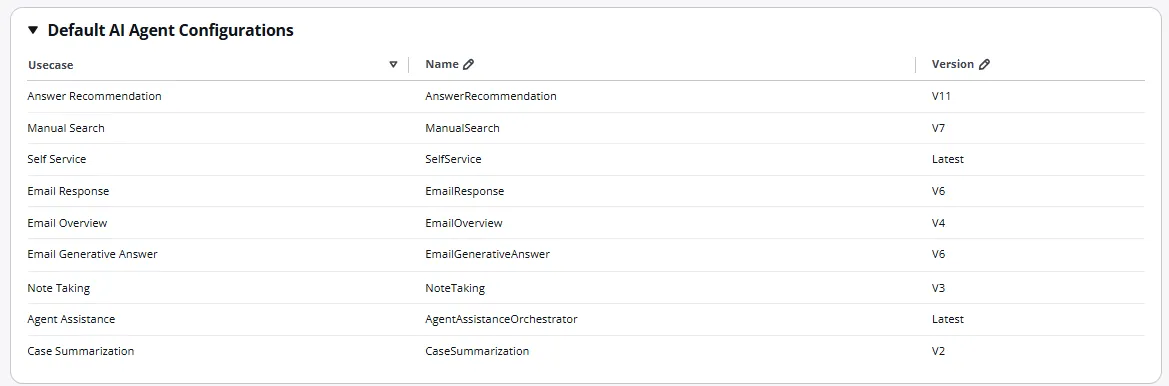
| AI agent type | What it does | Prompts it uses |
|---|---|---|
| Orchestration | Multi-turn conversations that can call tools; used for agentic self-service and the newer agent assistance experience | Orchestration |
| Answer recommendation | Suggests answers to human agents automatically during a contact | Intent labelling generation, query reformulation, answer generation |
| Manual search | Answers when an agent types a question | Answer generation |
| Self-service | Answers customers directly (the earlier self-service model) | Self-service pre-processing, self-service answer generation |
| Email response / overview / generative answer | Drafts email replies, summarises threads and answers questions about emails | Email prompts |
Note taking, agent assistance and case summarisation also have system defaults. When you publish your own agent for a use case, it can replace the default.
Step by step: build your first AI agent
Step 1: Check permissions
You need an admin account, or a security profile with AI agent designer > AI agents > Create. If you cannot see the AI agent designer menu at all, this permission is the usual reason. Also check that an AI agent domain (assistant) is enabled for your instance in the Amazon Connect console.
Step 2: Create the agent
- Sign in to your Amazon Connect admin website.
- Go to AI agent designer > AI agents and choose Create AI Agent.
- Pick the AI Agent type. For a tool-using assistant, choose Orchestration.
- Give it a clear name, for example
TechGyan360-AI-Agent.
Step 3: Set locale and security profiles
In the Agent builder, choose the response locale (one at a time) and the security profiles the agent should use for tools.
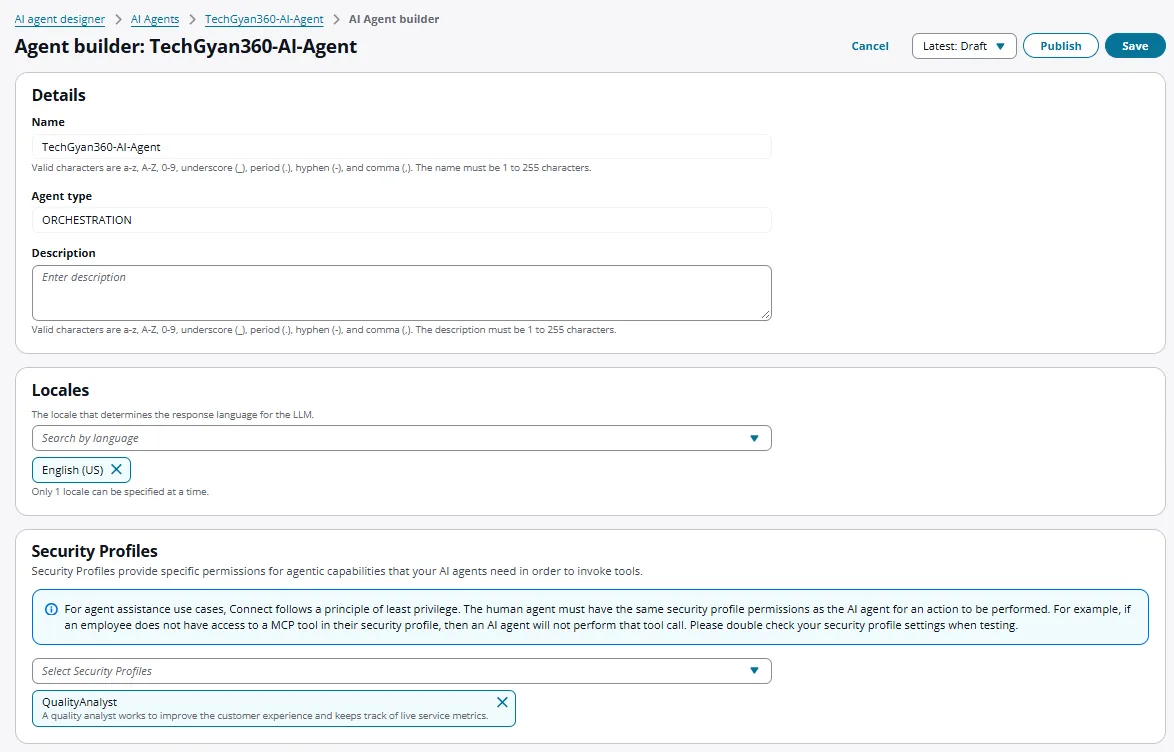
Important: for agent assistance, Amazon Connect follows least privilege. The human agent must have the same security profile permissions as the AI agent for an action to run. If the human agent cannot use an MCP tool, the AI agent will not call it either. This is the most common reason a tool “does nothing” in testing.
Step 4: Add a prompt and a guardrail
Attach a published prompt version (drafts cannot be selected) and, ideally, a guardrail. Any prompt you do not override keeps the system default.

Step 5: Save and publish
Choose Save while you work, then Publish. Publishing creates an immutable version, shown in the Versions panel. Flows and the assistant use published versions, so you can test a new version and roll back if needed.
Step 6: Use it in a contact flow
Add the Connect assistant block to your flow, after a Set recording, analytics and processing behavior block that turns on real-time analytics. The block links the contact to your AI agent domain, and the assistant then uses the default agent for each use case.
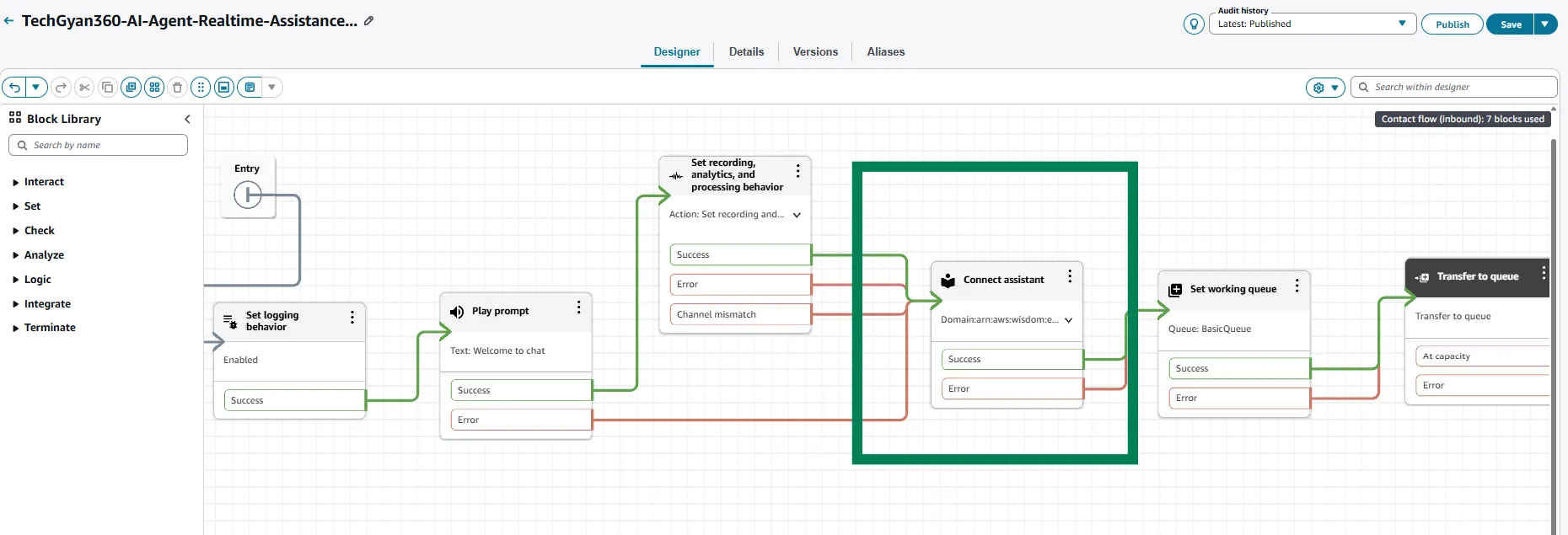
To use a specific agent version for one contact instead of the default, call a Lambda function from the flow and set it at session level. You can also set the assistant-wide default from the AWS CLI:
aws qconnect update-assistant-ai-agent \
  --assistant-id YOUR_ASSISTANT_ID \
  --ai-agent-type MANUAL_SEARCH \
  --configuration '{"aiAgentId": "YOUR_AI_AGENT_ID:1"}'
Use your own assistant ID and agent ID; :1 is the published version number. To go back to the system agents, list them with aws qconnect list-ai-agents --assistant-id YOUR_ASSISTANT_ID --origin SYSTEM.
Prompt basics you should know
- Two formats:
MESSAGES(system message, conversation turns and optional tools) andTEXT_COMPLETIONS(a single prompt, used for knowledge-base answer generation). - Variables:
{{$.transcript}}(recent conversation),{{$.contentExcerpt}}(knowledge-base excerpts),{{$.query}},{{$.locale}}, and{{$.Custom.NAME}}for your own session data set through contact attributes. - Do not rename the output tags that Amazon Connect reads, such as
<answer>,<sources>and<query>. Renaming them breaks the response. - In self-service orchestration, only text inside
<message>is shown to the customer; reasoning and tool calls stay hidden. - Start from a system prompt, copy it, and change one thing at a time. Always include a clear “I don’t have enough information” fallback and escalation rules.
For a deeper technical reference, the AWS Builder Center community article on AI agent prompt engineering is worth reading (note: community content, not official documentation).
Tools, MCP and multi-agent orchestration
- Tools let an orchestration agent do things, not just talk. Amazon Connect includes ready-made tools, such as updating contact attributes and retrieving case information.
- MCP (Model Context Protocol) is an open standard for connecting AI to systems. Amazon Connect can turn your existing flow modules into MCP tools, so logic you already built (for example “check order status”) becomes an action the AI agent can call.
- Multi-agent (A2A): through the open Agent-to-Agent standard, Amazon Connect can coordinate hand-offs between your existing AI agents, pass context between them and show a trace of each conversation.
AI agents vs Amazon Lex: which should you use?
| Amazon Lex | AI agents | |
|---|---|---|
| Best for | Fixed, predictable intents: “pay my bill”, “check balance” | Open-ended questions and multi-step problems |
| How it decides | Intents and slots you define | A large language model guided by prompts and guardrails |
| Answers from documents | Limited | Yes, through the knowledge base |
| Predictability | Very high | High with good prompts and guardrails, but less deterministic |
You do not have to choose one. AWS positions them together: Lex handles predefined intents, and AI agents handle the open-ended conversations.
Real-world results
AWS’s product page shares early customer examples:
- Zepz (cross-border payments) says its assistant handles 67% of customer enquiries instantly through self-service.
- Orbit Irrigation expects 10–15% time savings on every contact; agents previously spent two to three minutes per interaction searching for information.
- Anthology plans to use MCP so students and staff can complete actions without leaving the chat.
Limits and common problems
| Problem | Likely cause and fix |
|---|---|
| AI agent designer menu missing | Your security profile lacks the AI agent designer permissions, or no AI agent domain is enabled for the instance |
| Can’t select my prompt | Only published prompt versions can be attached; publish the prompt first |
| Tool is never called | The human agent’s security profile lacks permission for that tool (least privilege), or the tool description is unclear to the model |
| Agent assist shows nothing | Real-time analytics is not enabled before the Connect assistant block, or the knowledge base has no matching content |
| Wrong language replies | Check the agent locale; the Self-service type supports English only |
| Need temperature or max tokens control | The UI exposes the model choice only; for finer control, call Bedrock from Lambda |
Pricing
AI agent capabilities are billed as part of Amazon Connect Customer usage, and prices differ by feature and Region. Check the official Amazon Connect pricing page before you plan a rollout, and see our Amazon Connect pricing guide for how the overall costs add up.
Frequently asked questions
Are AI agents the same as Amazon Q in Connect?
They are the evolution of it. The capabilities that were branded Amazon Q in Connect now sit under AI agents in Amazon Connect Customer, with configurable prompts, guardrails, tools and versions. The CLI still uses the qconnect name.
Which channels do AI agents support?
Self-service AI agents work on voice and chat. Agent assistance works on calls, chats, tasks and emails.
Do I need to write code to use AI agents?
No. You can create agents, prompts and guardrails in the admin website and enable them with the Connect assistant flow block. Code (Lambda or CLI) is only needed for advanced control, such as choosing a specific agent version per contact.
Which AI models do AI agents use?
They run on Amazon Bedrock. The model can be selected in the prompt settings; supported models change over time, so check the current AWS documentation.
Can AI agents take actions, not just answer questions?
Yes. Orchestration agents can call tools, including flow modules exposed through MCP, within the permissions of their security profiles.
Can I use AI agents together with Amazon Lex?
Yes. A common design uses Lex for predictable intents and AI agents for open-ended questions and multi-step help.
Is it safe for regulated industries?
AWS states that agent assist can be used in compliance with GDPR and is HIPAA eligible. You are still responsible for your own guardrails, data handling and testing.
Next steps
- Get the flow basics right first: Amazon Connect contact flows guide.
- See where AI agents fit in the bigger design: Amazon Connect architecture explained.
- Test yourself: free Amazon Connect practice exam.
- Learn it hands-on, including AI agents, in our live Amazon Connect training.
Sources
- AWS documentation: AI agents in Amazon Connect
- AWS documentation: Create AI agents
- AWS: Amazon Connect Customer AI agents product page
- AWS Builder Center (community): AI agents prompt engineering technical reference
Join our live, instructor-led Amazon Connect training: 17 modules, 75+ hours, 80% hands-on labs, rated 4.8★ by our trainees. Or test yourself first with our free practice exams.


