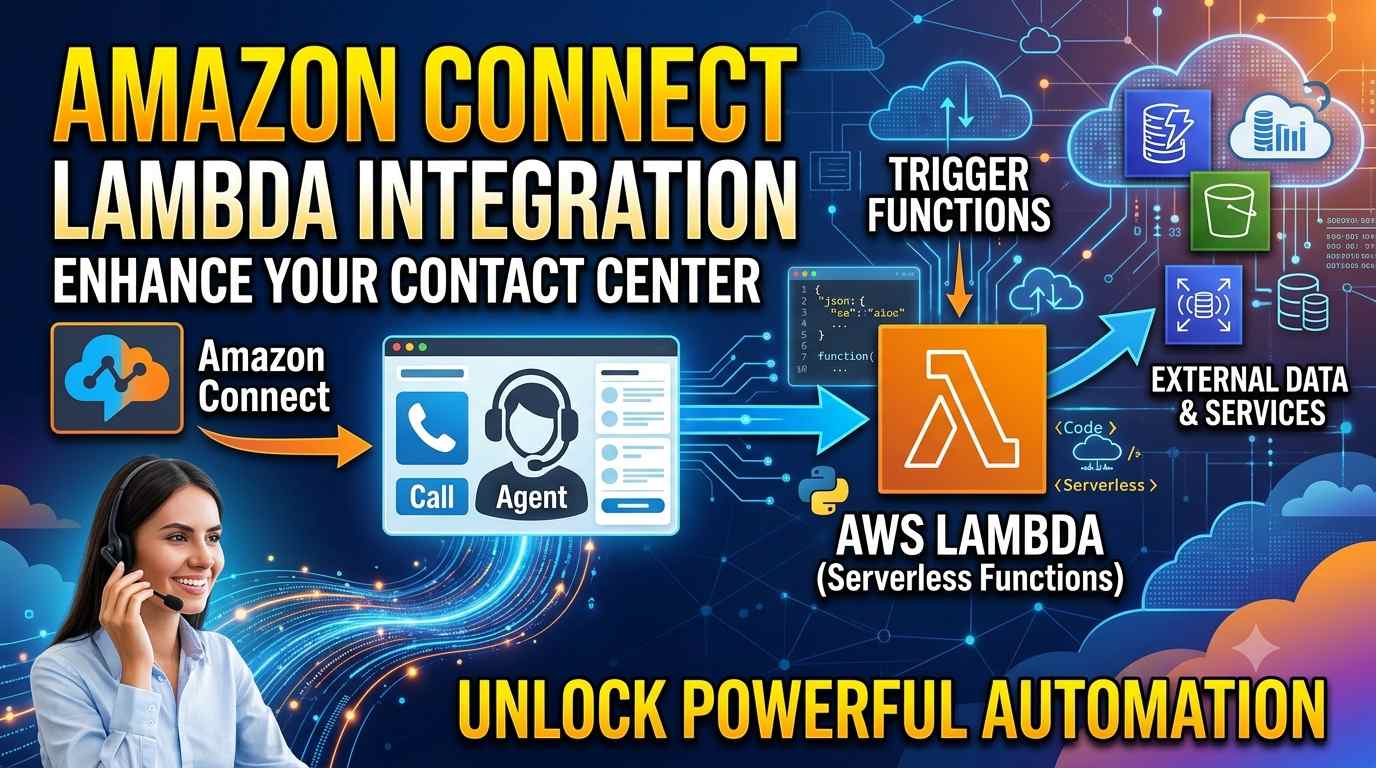

Quick answer: Amazon Connect calls AWS Lambda from a contact flow using the Invoke AWS Lambda function block. Connect sends your function an event holding the contact’s details (caller number, channel, attributes) plus any parameters you set. Your function returns a small set of key/value pairs, and the flow reads them as
$.External.keyNameto make routing decisions, play personalised prompts or save contact attributes. In synchronous mode the call must finish within 8 seconds, and the response must be under 64 KB.
Lambda is what turns a basic IVR into a smart one. Without it, a contact flow only knows what Amazon Connect knows. With it, the flow can look up the caller in your CRM, check an order, test for a holiday or decide that this caller is a VIP who skips the queue. In this guide you’ll build a working integration step by step, with code in Python and Node.js, three real-world examples and the mistakes that break most first attempts.
How Amazon Connect Lambda integration works
The whole integration is a round trip of four steps:
- The contact reaches the block. A caller (or a chat, task or email contact) arrives at the Invoke AWS Lambda function block in your flow.
- Connect sends an event. Connect invokes your function with a JSON event containing
Details.ContactData(always sent) andDetails.Parameters(the values you configure on the block). - Lambda does the work. Your code reads the event, calls whatever it needs (DynamoDB, an API, Salesforce, a database) and returns key/value pairs.
- The flow uses the result. The returned keys become available as
$.External.key. The flow can branch on them with a Check contact attributes block, speak them in a prompt, or store them with Set contact attributes.
The block works on all four channels (voice, chat, task and email) and in most flow types: inbound, customer queue, customer hold, customer whisper, outbound whisper, agent hold, agent whisper, transfer to agent and transfer to queue. If you’re new to flows, read our Amazon Connect contact flows guide first.
Step 1: Create the Lambda function
Create the function in the same AWS Region as your Connect instance. That keeps setup simple: the Connect console only lists functions from its own Region, and it grants invoke permission automatically when you add them.
- Open the AWS Lambda console and choose Create function → Author from scratch.
- Name it, for example
connect-customer-lookup. - Pick a runtime: Python 3.12 or Node.js 20.x are good choices.
- Keep the default execution role for now (you’ll add DynamoDB permissions later if you need them).
- Under Configuration → General configuration, set the function timeout to about 5 seconds. Connect won’t wait longer than 8 seconds anyway, so a long Lambda timeout only wastes money.
Here’s a minimal function that greets the caller using their phone number. Python first:
def lambda_handler(event, context):
    contact = event["Details"]["ContactData"]
    params = event["Details"].get("Parameters", {})

    phone = contact.get("CustomerEndpoint", {}).get("Address", "unknown")
    company = params.get("companyName", "TechGyan360")

    # Every value returned must be a string for STRING_MAP validation
    return {
        "greeting": f"Welcome to {company}",
        "callerNumber": phone,
        "lookupStatus": "OK"
    }
The same function in Node.js (ES module syntax, as used by Node.js 18 and later):
export const handler = async (event) => {
  const contact = event.Details.ContactData;
  const params = event.Details.Parameters || {};

  const phone = contact.CustomerEndpoint?.Address ?? "unknown";
  const company = params.companyName ?? "TechGyan360";

  return {
    greeting: `Welcome to ${company}`,
    callerNumber: phone,
    lookupStatus: "OK"
  };
};
Step 2: Add the function to your Connect instance
A flow can’t call a function until the instance knows about it.
- Open the Amazon Connect console and choose your instance alias.
- In the navigation pane, choose Flows.
- In the AWS Lambda section, pick your function from the Function drop-down and choose Add Lambda Function.
- Check that its ARN now appears under Lambda Functions.
Adding the function this way automatically gives Connect permission to invoke it.
Function in another Region or account? Paste its ARN into the flow block directly, then grant Connect permission yourself with a resource policy:
aws lambda add-permission \
  --function-name arn:aws:lambda:us-east-1:111122223333:function:connect-customer-lookup \
  --statement-id connect-invoke \
  --action lambda:InvokeFunction \
  --principal connect.amazonaws.com \
  --source-account 444455556666 \
  --source-arn arn:aws:connect:us-east-1:444455556666:instance/your-instance-id
Always set --source-arn to your instance ARN. Without it, any Connect instance could invoke your function.
Step 3: Call Lambda from a contact flow
- Open your flow in the flow designer and drag in the Invoke AWS Lambda function block (in the Integrate group).
- Set Select an action to Invoke Lambda, then choose your function.
- Under Function input parameters, add any values the function needs, for example key
companyName, set manually or from an attribute. These arrive inDetails.Parameters. - Choose the Execution mode:
- Synchronous: the contact waits until Lambda finishes. Timeout up to 8 seconds. The block has Success, Error and Timeout branches.
- Asynchronous: the contact moves on straight away. Timeout up to 60 seconds. Use a Wait block to wait for the result, then a second Lambda block with the action Load Lambda result (it uses
$.LambdaInvocation.InvocationIdto fetch the most recent asynchronous result).
- Choose Response validation:
STRING_MAPorJSON(explained below). - Connect the Success branch to the rest of your flow and the Error (and Timeout) branches to a safe fallback, such as a prompt plus transfer to a general queue.
- Save and Publish the flow.
The input event Connect sends
Every invocation gets the same structure. Here’s an abbreviated example with the fields you’ll use most:
{
  "Details": {
    "ContactData": {
      "Attributes": { "language": "en" },
      "Channel": "VOICE",
      "ContactId": "4a573372-1f28-4e26-b97b-XXXXXXXXXXX",
      "CustomerEndpoint": { "Address": "+14155550123", "Type": "TELEPHONE_NUMBER" },
      "InitialContactId": "4a573372-1f28-4e26-b97b-XXXXXXXXXXX",
      "InitiationMethod": "INBOUND",
      "InstanceARN": "arn:aws:connect:us-east-1:111122223333:instance/...",
      "LanguageCode": "en-US",
      "Queue": { "Name": "Support", "ARN": "arn:aws:connect:..." },
      "SystemEndpoint": { "Address": "+18005550100", "Type": "TELEPHONE_NUMBER" }
    },
    "Parameters": { "companyName": "TechGyan360" }
  },
  "Name": "ContactFlowEvent"
}
The rules that matter:
- Block parameters are in
event.Details.Parameters. - Contact attributes set earlier in the flow are in
event.Details.ContactData.Attributes. - The caller’s number is
event.Details.ContactData.CustomerEndpoint.Addressin E.164 format (for example+14155550123). - The number they dialled is
SystemEndpoint.Address. It’s handy when one function serves several brands or DIDs. - Fields can be missing or null depending on the channel (a chat has no phone number), so read them defensively with
.get()in Python or?.in JavaScript.
Response format rules (STRING_MAP vs JSON)
This is where most integrations break. You choose the format with the block’s Response validation setting.
| STRING_MAP | JSON | |
|---|---|---|
| Shape | Flat key/value pairs only | Any valid JSON, including nested objects |
| Value types | Strings only | Strings, numbers, booleans, objects |
| Characters | Values limited to letters, numbers, dashes and underscores | No such restriction |
| Reference in flow | $.External.AccountId |
$.External.Name.First (dot path into nested data) |
| Best for | Simple flags and IDs | Richer data, text with spaces or punctuation |
Some limits apply to both:
- Size: the response must be under 64 KB (UTF-8).
- Arrays: flows can’t reference array items. If you return
"OrderIds": ["x1","y2"], the flow can’t readOrderIds[0]. Return"latestOrderId": "x1"instead, or pass the array on to another Lambda. - No nulls or exceptions: if the response can’t be parsed, the contact goes down the Error branch.
"balance": 120) or a value with spaces or symbols ("$1,000.50") can fail validation. Either convert values to simple strings (str(balance)) or switch the block to JSON validation. That’s the safer default for anything a customer will hear.Using the results in your flow
There are two ways to use what Lambda returns.
Option 1: reference it directly with $.External. In a Play prompt you can write text such as “Your order status is $.External.orderStatus”. In a Check contact attributes block, choose namespace External and key isVip and branch on the value true. External values aren’t stored in the contact record, and they’re replaced the next time any Lambda runs in the flow.
Option 2: save them as contact attributes. Add a Set contact attributes block straight after the Lambda block: destination type User defined, key customerTier, value from namespace External, key tier. Attributes last for the whole contact, show in the agent’s Contact Control Panel and appear in contact records, so you can report on them later.
Rule of thumb: anything you need after another Lambda call, or anything an agent or a report should see, belongs in an attribute.
Three real-world examples
Example 1: customer lookup in DynamoDB with VIP routing
The caller’s number is looked up in a DynamoDB table called Customers, keyed on phone. VIP customers go to a priority queue, and everyone hears their name.
import os
import boto3

table = boto3.resource("dynamodb").Table(os.environ.get("TABLE_NAME", "Customers"))

def lambda_handler(event, context):
    phone = (event["Details"]["ContactData"]
             .get("CustomerEndpoint", {}) or {}).get("Address")
    if not phone:
        return {"found": "false"}

    try:
        item = table.get_item(Key={"phone": phone}).get("Item")
    except Exception as exc:
        print(f"DynamoDB error for contact "
              f"{event['Details']['ContactData'].get('ContactId')}: {exc}")
        return {"found": "error"}

    if not item:
        return {"found": "false"}

    return {
        "found": "true",
        "firstName": item.get("firstName", ""),
        "tier": item.get("tier", "standard"),
        "isVip": "true" if item.get("tier") == "gold" else "false",
        "accountId": item.get("accountId", "")
    }
The flow: Invoke Lambda (JSON validation) → Set contact attributes (save tier and accountId) → Check contact attributes on $.External.isVip. When it’s true: Set working queue to VIP Support. Otherwise: General Support. Then play the prompt “Hi $.External.firstName, thanks for calling.” only when found is true.
Permissions: give the Lambda’s execution role dynamodb:GetItem on that one table, and nothing broader.
Example 2: order status from an external REST API
The caller enters an order number with Store customer input, which you save as the attribute orderNumber. Lambda calls your order API and returns a status the flow can read aloud. This Node.js example uses the built-in fetch (Node.js 18+), with its own short timeout so that a slow API can’t hang the call.
const API_BASE = process.env.ORDER_API_URL;   // e.g. https://api.example.com
const API_KEY  = process.env.ORDER_API_KEY;   // better: load from Secrets Manager

export const handler = async (event) => {
  const orderNumber = event.Details.ContactData.Attributes?.orderNumber;
  if (!orderNumber) return { orderFound: "false" };

  const controller = new AbortController();
  const timer = setTimeout(() => controller.abort(), 3000); // stay well under 8s

  try {
    const res = await fetch(`${API_BASE}/orders/${encodeURIComponent(orderNumber)}`, {
      headers: { Authorization: `Bearer ${API_KEY}` },
      signal: controller.signal
    });
    if (res.status === 404) return { orderFound: "false" };
    if (!res.ok) throw new Error(`API returned ${res.status}`);

    const order = await res.json();
    return {
      orderFound: "true",
      orderStatus: order.status,          // e.g. "shipped"
      deliveryDate: order.deliveryDate    // e.g. "18 November"
    };
  } catch (err) {
    console.error("Order lookup failed", event.Details.ContactData.ContactId, err.message);
    return { orderFound: "error" };
  } finally {
    clearTimeout(timer);
  }
};
Because deliveryDate contains a space, set the block to JSON validation. Branch on orderFound: true plays “Your order is $.External.orderStatus and should arrive on $.External.deliveryDate”, false asks the caller to re-enter the number, and error offers an agent.
Example 3: business hours with a holiday list
Connect’s built-in Check hours of operation block covers weekly hours. Public holidays and one-off closures are easier to manage in Lambda, especially across several countries.
from datetime import datetime
from zoneinfo import ZoneInfo

HOLIDAYS = {"2026-12-25", "2026-12-26", "2027-01-01"}   # or load from DynamoDB/SSM
OPEN, CLOSE = 9, 18                                        # 9am to 6pm local time

def lambda_handler(event, context):
    tz = event["Details"].get("Parameters", {}).get("timezone", "America/New_York")
    now = datetime.now(ZoneInfo(tz))

    if now.strftime("%Y-%m-%d") in HOLIDAYS:
        return {"isOpen": "false", "reason": "holiday"}
    if now.weekday() >= 5:
        return {"isOpen": "false", "reason": "weekend"}
    if not (OPEN <= now.hour < CLOSE):
        return {"isOpen": "false", "reason": "afterhours"}
    return {"isOpen": "true", "reason": "open"}
Pass timezone as a block parameter so the same function works for every site. Branch on isOpen, and use reason to pick the right closed message. A plain-English “We’re closed for the holiday” beats a generic after-hours prompt.
Error handling, timeouts and retries
The contact goes down the Error branch when:
- Connect can’t reach the function (missing permission, wrong ARN, deleted function);
- the function throws an exception;
- the response can’t be parsed or fails validation;
- the timeout is exceeded. In synchronous mode, this goes down the Timeout branch.
Connect also retries automatically when an invocation is throttled, hits a 500 service error or returns an error: up to three retries, but never past the block’s timeout.
Two limits are easy to forget:
- 8 seconds per synchronous block, including retries.
- 20 seconds in total for back-to-back Lambda calls in a row. Put a Play prompt between chained Lambda blocks, both to reset that sequence and so the caller isn’t sitting in silence.
The pattern that works:
- Catch errors inside the function and return a status key (
"lookupStatus": "error") instead of throwing. You keep control of the caller experience and still log the problem. - Always wire the Error and Timeout branches to a friendly fallback, never to Disconnect. “Let me connect you to someone who can help” is always better than a dropped call.
- Set timeouts on everything Lambda calls (HTTP, database), well under Connect’s limit.
- Keep functions warm where it matters. Cold starts on large functions can add a second or more. Keep packages small, initialise clients outside the handler (as in the DynamoDB example), and consider provisioned concurrency for high-volume entry flows.
Testing and CloudWatch logs
1. Test the function on its own first. In the Lambda console, create a test event that copies the input event above with your own phone number and parameters, then run it. Check that the output is flat (for STRING_MAP) and well under 64 KB.
2. Test it through Connect. Publish the flow, assign it to a phone number (Channels → Phone numbers) and call it. Add temporary Play prompts such as “Debug: tier is $.External.tier” while testing, then remove them.
3. Read the logs. Two places matter:
- Lambda logs in CloudWatch, under
/aws/lambda/your-function-name. Log theContactIdon every line so you can follow a single call. - Connect flow logs, once you turn on flow logging for the instance and add a Set logging behavior block. These show what Connect sent, what came back and which branch the contact took. They’re the fastest way to diagnose an Error branch.
Flow logs are verbose JSON. To make sense of them quickly, paste them into the free Kloudmint Amazon Connect log analyzer, which turns them into a readable step-by-step view of the contact’s path.
Security and best practices
- Least privilege. Give each function’s execution role only the actions it needs, on only the resources it needs (for example
dynamodb:GetItemon one table). - No secrets in code. Store API keys in AWS Secrets Manager or SSM Parameter Store, and cache them outside the handler.
- Restrict invocation. For cross-account functions, always set
source-arnto your instance ARN. - Protect personal data. Don’t log full card numbers, dates of birth or other sensitive caller input. Mask it before printing. If you collect payment data, use Connect’s encrypted Store customer input option.
- Save what you need.
$.Externalholds only the latest Lambda response, so copy important values into attributes before calling another function. - One function, one job. Small focused functions (lookup, hours check, order status) are easier to test, reuse across flows and keep fast.
- Use versions and aliases. Point your flows at a Lambda alias (such as
prod). You can then ship and roll back code without editing and republishing flows. - Watch the metrics. Set CloudWatch alarms on the function’s errors, throttles and duration. Slow Lambdas become long silences for callers.
Frequently asked questions
What is the maximum Lambda timeout in Amazon Connect?
8 seconds in synchronous mode and 60 seconds in asynchronous mode. Back-to-back Lambda calls without a prompt between them are also limited to 20 seconds in total.
Why does my Lambda work in testing but go down the Error branch in the flow?
Usually the response format. Check that it matches the validation setting: flat string values for STRING_MAP, with no spaces or symbols. Also check that the function was added to the instance (or has a resource policy), and that it finishes in time. Flow logs show the exact reason.
How do I pass data from the flow into Lambda?
Add Function input parameters on the block (read from Details.Parameters), or set contact attributes earlier in the flow (read from Details.ContactData.Attributes).
Can Lambda return nested JSON to Amazon Connect?
Yes, if you set Response validation to JSON. You can then reference nested values like $.External.Name.First. Arrays still can’t be referenced inside the flow.
Can one Lambda function serve several flows?
Yes. Pass a parameter such as action or brand from each flow and branch on it in code. Keep each function focused, though. One giant “do everything” function gets slow and hard to maintain.
Does Amazon Connect Lambda work for chat, tasks and email?
Yes. The Invoke AWS Lambda function block supports voice, chat, task and email. Just remember that fields like CustomerEndpoint differ by channel.
Next steps
- Learn how flows fit together in our contact flows guide and the wider Amazon Connect architecture.
- Preparing for a role? Practise with our 100 Amazon Connect developer interview questions, where Lambda questions come up in almost every interview.
- Want hands-on guidance? Our live Amazon Connect training builds Lambda-powered flows end to end, from DynamoDB lookups to CRM integration.
Source: AWS: Invoke AWS Lambda function block and AWS: Grant Amazon Connect access to Lambda functions. Limits checked November 2026.
Join our live, instructor-led Amazon Connect training: 17 modules, 75+ hours, 80% hands-on labs, rated 4.8★ by our trainees. Or test yourself first with our free practice exams.